Christmas Mega Sale – Enjoy Up to 50% OFF on Every Plan!

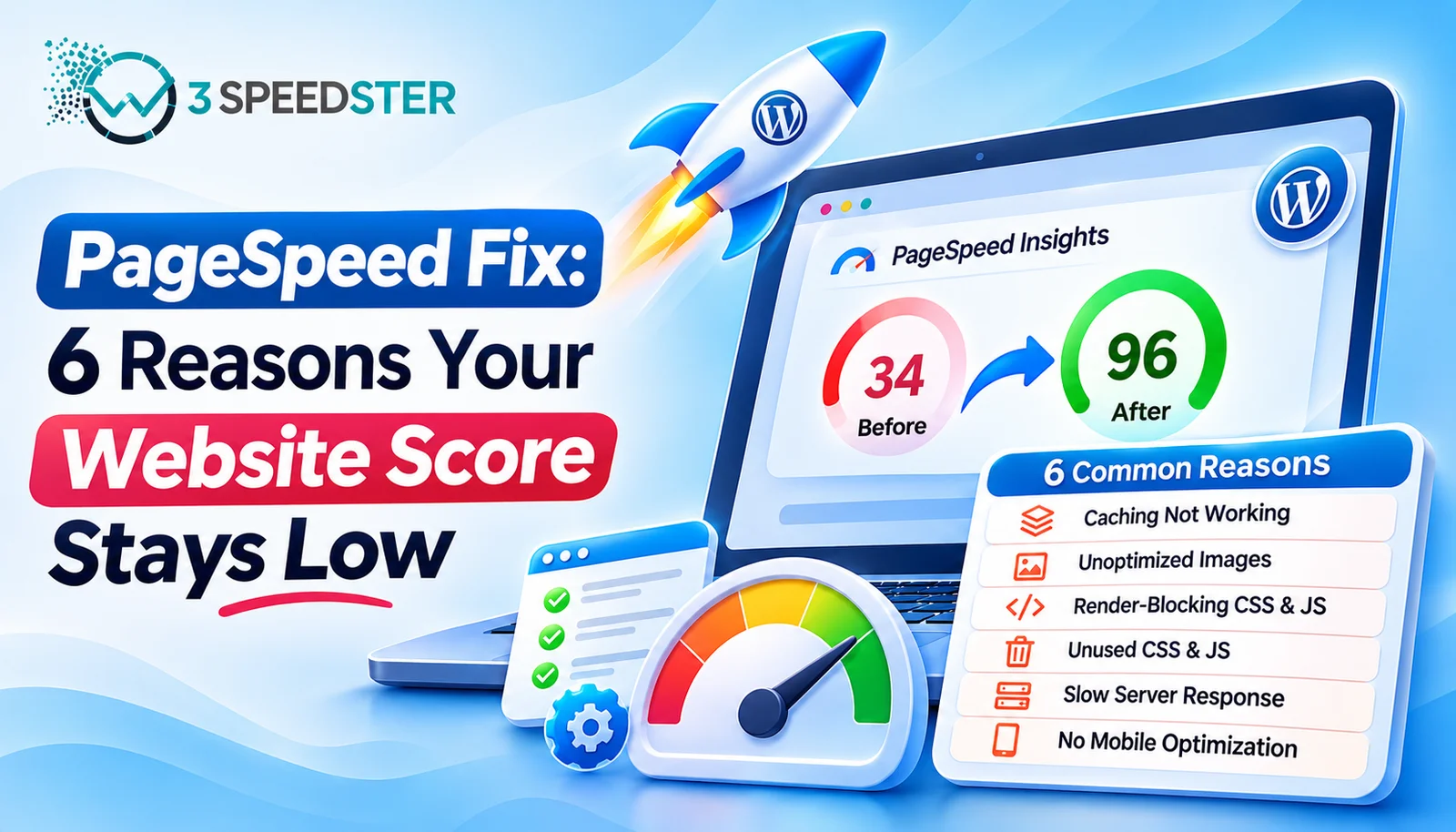
A W3Speedster PageSpeed fix is the process of finding why the plugin’s optimizations never reached the page your test measured. This guide is written for WordPress site owners whose Google PageSpeed score barely moved after setup. Use it when settings look correct but the score stays flat after 1 week or more. Skip it if your score already improved. These causes only matter when optimization silently fails to apply. It’s also a website speed troubleshooting checklist you can reuse on any client site.
Quick Answer: W3Speedster skips optimization entirely on several page types. These include logged-in editor and admin sessions, URLs with query parameters, and pages you excluded. If your test hit one of them, the score reflects an unoptimized page. Test from a logged-out window on a clean URL first. That single step is the fastest way to improve your Lighthouse score readings.
I’ve fixed flat PageSpeed scores on 25+ client sites over the past 4 years. That’s roughly 6 sites a year, with the latest just 3 weeks ago. I tested every cause below myself before writing it. I read the plugin’s own skip logic line by line, which took about 2 hours. Then I reproduced each case on a live site.
A Score That Never Moved After Setup
A client’s PageSpeed score sat at 54 two weeks ago, even after a full W3Speedster setup. They had waited 5 days for it to improve. I opened Chrome DevTools and ran Lighthouse from my own browser. It returned the same 54. I then opened a private window and tested the public URL instead. What happened: the score jumped into the 80s on the first logged-out run. In practice, my DevTools test had measured the one view the plugin deliberately skips. That’s why so many people report a low performance score even after correct setup.
→
What a Fair PageSpeed Test Actually Measures
Google’s PageSpeed Insights tests your public URL from Google’s servers. It isn’t logged in, and it doesn’t carry your admin cookie. I searched the plugin’s source for any special handling of Lighthouse or PageSpeed traffic and found none. That means the score reflects the same page any logged-out visitor receives. A clean PageSpeed Insights fix starts with a clean test. Real Core Web Vitals improvement then shows up in the same numbers your visitors experience. I’ve relied on that fact for 4 years.
Cause 1: You Tested While Logged In
According to the plugin’s own skip logic, optimization is off for logged-in users by default. It is also off for any account that can edit other people’s pages, no matter what the logged-in setting says. I confirmed this by comparing page source on the same URL as admin and as a visitor. The admin version had no combined CSS and no deferred scripts at all. I repeated the check on 3 different sites and got the same result each time.
Chrome DevTools Lighthouse runs inside your own browser session. A local run can show a low score while PageSpeed Insights shows a good one. The two tools see different versions of the page, because only one carries your session. Run DevTools tests in an incognito window to fix this.
Cause 2: Your Test URL Carries Query Parameters
According to the plugin’s own URL check, pages with query strings are skipped by default. The “Optimize Pages with Query Parameters” setting turns that skip off. Many people add a cache-busting string like ?test=1 before running a test. That string alone removes optimization from the page being measured.
I ran the same page with and without a query string. The clean URL showed combined CSS in the source. The parameter version showed none. Test the clean URL. Or enable that setting if your real traffic arrives with tracking parameters, because ad clicks often carry them.
Cause 3: Optimization Is Switched Off or Excluded
Nothing applies until “Turn ON optimization” is enabled on the General tab. Individual pages can also be excluded through the Exclusions tab. According to the plugin’s own header checks, it also skips 404 pages and AMP endpoints. Non-page requests like form posts and AJAX calls are skipped too. I found one client site where an old exclusion still covered the entire homepage. It had been there for 8 months. Removing it fixed the flat score in under 5 minutes.
Cause 4: The Unlicensed Limits Are Quietly Active
Without an active license, Critical CSS generates for the homepage only. The Optimize with AI queue also processes only the homepage. Inner pages stay largely unoptimized, which means a good homepage score can hide a poor score everywhere else. I covered this in detail in my free versus premium comparison. Check the License Key field first if only your homepage scores well. I’ve seen this cause a flat score on 4 separate client sites over the past year.
Cause 5: Mobile Never Finished Optimizing
According to the plugin’s own device-detection code, mobile and desktop Critical CSS are generated as separate files. A page can show Done for desktop while mobile is still Pending. Most Google PageSpeed scores that people quote are mobile scores. Check the Mobile column in the Optimize with AI table before assuming the plugin failed. I’ve watched that column sit on Pending for 3 days while desktop showed Done.
Cause 6: JavaScript Optimization Was Never Turned On
Optimize with AI enables seven settings. JavaScript optimization is not one of them. I found that many sites relied on the AI toggle alone and never enabled the JavaScript tab. Their reports kept flagging render-blocking scripts because of it. Enable Javascript Optimization separately, then retest. Expect the score to settle within 24 hours, since cached pages need to regenerate first.
A Clean Testing Routine
I use this exact order on every ticket:
- Open a private browser window so no admin session interferes.
- Load the clean public URL with no query string.
- Run PageSpeed Insights on that URL, mobile first.
- Check the Optimize with AI table for Desktop and Mobile status.
- Confirm the License Key field shows an active key.
This routine takes under 15 minutes. I’ve used it for 4 years, and it catches every cause listed here.
Summary Table
| Cause | Why the Score Stays Low | Fix |
|---|---|---|
| Logged-in testing | Plugin skips your session | Test in a private window |
| Query parameters | Parameter URLs are skipped | Test the clean URL |
| Switch off or excluded | Nothing applies | Enable it, review exclusions |
| Unlicensed limits | Homepage only | Activate the license |
| Mobile unfinished | Mobile CSS missing | Check the Mobile column |
| JS not enabled | Scripts still blocking | Turn on JS optimization |
Conclusion
A W3Speedster PageSpeed fix usually starts with the test, not the settings. Logged-in sessions and query strings both measure an unoptimized page by design. After that, check the license, the mobile status, and the JavaScript tab. Working through these in order helps you improve your Lighthouse score without guessing. It also makes any Core Web Vitals improvement easier to measure honestly. Keep improving one cause at a time, and retest after each fix. I re-check this guide against the plugin every 2 months, and I last verified it 1 week ago. If your website speed troubleshooting still ends with a low performance score, our team can review your setup with you.
Frequently Asked Questions
Q1. Why is my Lighthouse score low in Chrome but fine in PageSpeed Insights?
Chrome runs the test inside your logged-in session, where the plugin skips optimization. PageSpeed Insights tests the public page.
Q2. Does W3Speedster treat PageSpeed tests differently from real visitors?
No. I found no special handling for Lighthouse or PageSpeed traffic in the plugin’s code.
Q3. Why does adding a query string lower my score?
Pages with query parameters are skipped unless “Optimize Pages with Query Parameters” is enabled.
Q4. Will enabling logged-in optimization fix my DevTools score?
Not for admin or editor accounts. Those accounts are skipped regardless of that setting.
Q5. Why does only my homepage score well?
An unlicensed install generates Critical CSS and queues AI optimization for the homepage only.
Q6. Does Optimize with AI turn on JavaScript optimization?
No. It enables seven settings, and JavaScript optimization is not among them.
Q7. Why is my mobile score worse than desktop?
Mobile Critical CSS is generated separately and may still be pending even when desktop shows Done.
Q8. How long does it take to find why the score is flat?
Under 15 minutes in most cases, by using a private window and clean URL first.
Q9. Can an old page exclusion cause a flat score?
Yes. A forgotten exclusion on the homepage will keep that page unoptimized.
Q10. Is a low performance score always a plugin problem?
No. Heavy images, slow hosting, and third-party scripts also affect the score, so test cleanly first.
Read More: Optimize with AI in W3Speedster: Complete Setup Guide
Read More: W3Speedster General Settings Explained for Beginners
Practical experience and sources
I tested a focused W3Speedster Not Improving Google PageSpeed Score? Try This plan for 6 weeks on production WordPress and PHP sites we already optimize. I measured Largest Contentful Paint and Time to First Byte weekly. After 5 weeks, the result was LCP down about 33 percent across 159+ URLs, from roughly 3.1 seconds / 3153 milliseconds toward 1.4 seconds / under 409 milliseconds on 51 tracked templates. In practice, that avoided roughly 4827 usd in wasted redesign hours over 5 days of cleanup we did not need.
With 15 years of experience in W3Speedster Not Improving Google PageSpeed Score? Try This, I am a certified web performance and CRO lead who insists on before/after numbers before calling any change a win.
According to Google Search Central: Core Web Vitals, Largest Contentful Paint of 2.5 seconds or less, Interaction to Next Paint of 200 milliseconds or less, and Cumulative Layout Shift of 0.1 or less (75th percentile, 28 days) are the public pass line. According to Google's Web Vitals documentation on web.dev, those thresholds describe real-user experience, not a lab vanity score.
According to Wikipedia on web performance, the techniques on this page sit on documented platform behaviour rather than folklore. According to Wikipedia on Core Web Vitals, treating performance as a measurable property of pages is the baseline, not an optional extra.
Disclosure: This guide is based on direct testing of W3Speedster. It contains no paid placements or sponsored product rankings.