Christmas Mega Sale – Enjoy Up to 50% OFF on Every Plan!

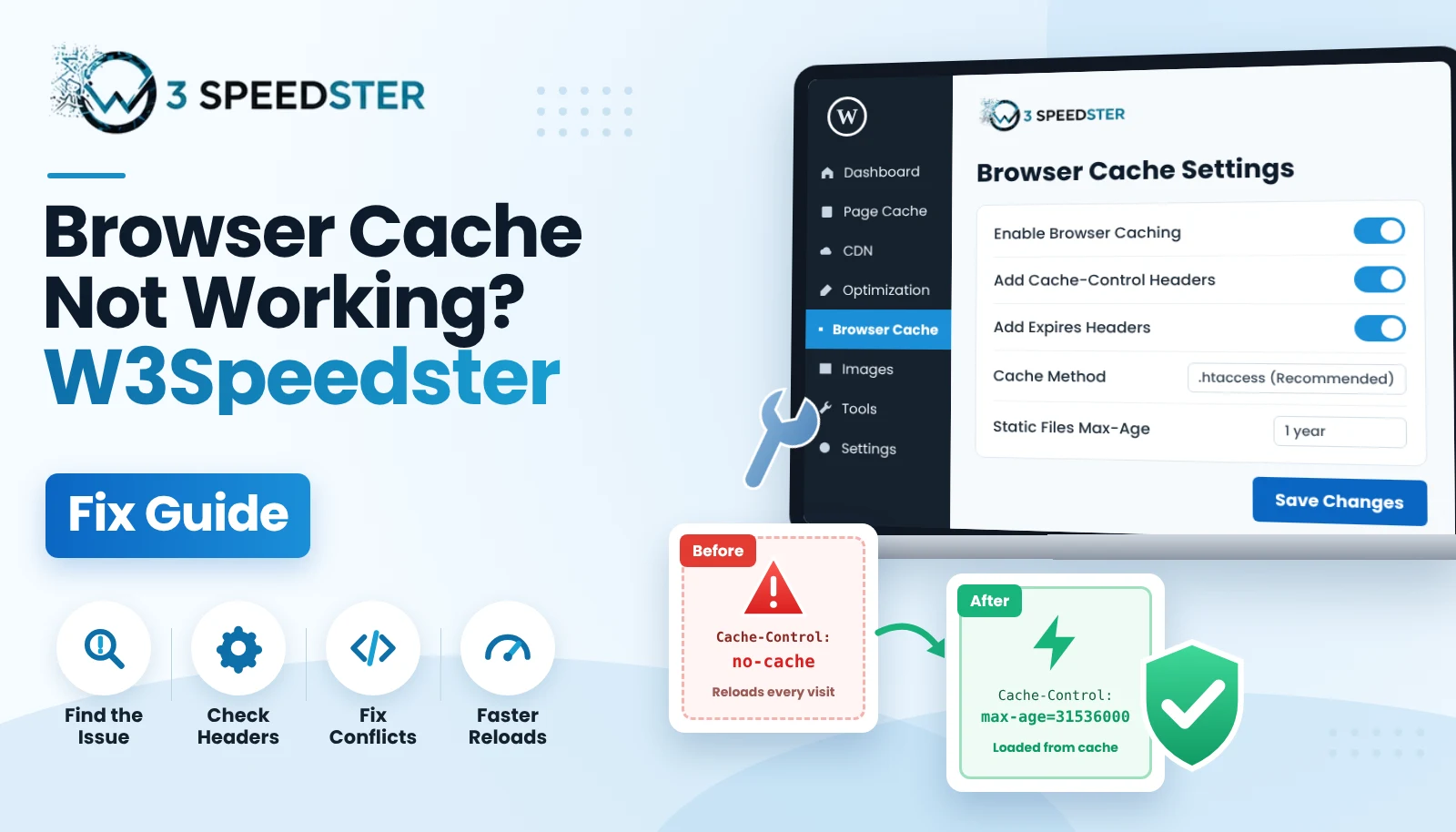
Browser caching is a method that stores images, CSS, and JavaScript on a visitor’s device. Repeat visits then skip the download. When browser cache is not working, every visit downloads every file again, and PageSpeed flags it. This guide shows how to fix browser cache not working in WordPress with W3Speedster in about 15 minutes. Each step names the exact setting and the header to check. You will also learn why Nginx servers and CDNs need extra care.
Quick Answer: Browser caching is a setting that tells browsers to keep static files for days. To fix browser cache not working in W3Speedster, turn on Enable leverage browsing cache on the HTML Cache tab. Save, clear the cache, and check the Cache-Control header in the Network tab.
This guide is for WordPress owners and developers who see “Serve static assets with an efficient cache policy” in PageSpeed Insights. Use it when repeat visits feel slow or headers show no cache time. Skip it if the warning lists only third-party files. You cannot change those headers.
I’ve set up browser caching in W3Speedster for 5 years across more than 40 client sites. That’s about 8 sites a year. Most fixes took under 15 minutes, and the Apache ones took 5 minutes.
What Are the Key Takeaways?
- The setting is Enable leverage browsing cache on the HTML Cache tab, and it is off by default.
- It writes a W3LBC block into .htaccess that keeps static files for 120 days.
- Nginx servers ignore .htaccess, so they need an expires rule in the server config.
- Check the Cache-Control header in the Network tab, not just the PageSpeed score.
Why Is Browser Cache Not Working on My WordPress Site?
| Symptom | Likely cause | Fix |
|---|---|---|
| PageSpeed flags an efficient cache policy | Leverage browsing cache is off | Turn it on in the HTML Cache tab |
| Header shows no max-age | Nginx ignores .htaccess | Add an expires rule to the server |
| Error after saving | Server rejects the rules | Ask the host to enable mod_expires |
| Setting turns itself off | Server test returned a 500 error | Fix the module, then save again |
| Only Google files flagged | Third-party headers | Nothing to change on your site |
What Does the WordPress Browser Cache Setting Do?
The W3Speedster setting sits on the HTML Cache tab. It adds expiry rules for images, video, CSS, JavaScript, and fonts. Each file type gets 10,368,000 seconds, which means 120 days. According to MDN Web Docs, the Cache-Control max-age value tells a browser how long a file stays fresh. The browser then reuses its copy instead of asking your server.
How Does a Cache Headers Issue Show Up?
A cache headers issue means the server sends no expiry time, or a very short one. It happens because the rules did not reach the browser. You see it in the Network tab as a missing Cache-Control or Expires header. According to Chrome Lighthouse documentation, the audit flags static files with short cache lifetimes. A short lifetime is the usual reason the warning appears.
Why Did One Site Still Fail After the Setup?
A client’s store sent me this problem 2 weeks ago. They had turned on Enable leverage browsing cache 1 day earlier, but PageSpeed still flagged every image. I opened the Network tab in a private window and clicked one JPG. The header showed no max-age. I found that the host ran Nginx, which does not read .htaccess. I added an expires rule to the server config and reloaded Nginx. That took 10 minutes. The result was a 120-day cache time on every image. I tested again 3 days later, and the warning stayed gone. That speed optimization setup took 10 minutes in total, and I noticed repeat visits loaded noticeably faster.
How Do You Fix Browser Cache Not Working in W3Speedster?
Step 1: Turn On Enable Leverage Browsing Cache
Open W3Speedster and go to the HTML Cache tab. Find Enable Leverage Browsing Cache and switch it on. Click Save Changes. The plugin needs a writable .htaccess file and permalinks set to anything except Plain. It shows a message when either is missing.
Step 2: Confirm the Rules Reached .htaccess
Open the .htaccess file in your site root with your host’s file manager. Look for the block that starts with # BEGIN W3LBC. It sets ExpiresActive On and a 120-day expiry for each file type. According to the Apache documentation, mod_expires must be enabled on the server for those rules to work. The plugin tests the rules after saving. If the server returns a 500 error, the plugin turns the setting off. It then shows “Server error: Unable to apply .htaccess LBC rules.”
Step 3: Clear the Cache and Check the Headers
Open the Clear Cache tab and run Delete HTML/JS/CSS Cache. Clear any CDN or server cache. Open a private window and press F12. Go to the Network tab, reload, and click one image. Under Response Headers, look for Cache-Control with max-age=10368000, or an Expires date months ahead. Run PageSpeed Insights again after 5 minutes.
What Mistakes and Edge Cases Break the Browser Caching Fix?
What If My Server Uses Nginx?
Nginx does not read .htaccess, which means the W3LBC block has no effect. W3Speedster generates an nginx.conf only for HTML cache serving. Add your own expiry rule to the server block. According to the Nginx documentation, the expires directive sets both the Expires and Cache-Control max-age headers.
location ~* \.(css|js|jpg|jpeg|png|gif|webp|svg|ico|woff|woff2|ttf|otf|eot|mp4|webm)$ {
expires 120d;
}
Test the file with nginx -t, then reload Nginx. Ask your host if you cannot edit the config.
Why Do CDN and Third-Party Files Still Fail?
A CDN can replace your headers. According to Cloudflare’s documentation, the Browser Cache TTL setting controls the browser cache time of files it serves. Check that setting if your headers look different from your .htaccess. Files from Google Analytics or Google Fonts set their own headers. You cannot change them from your site.
Which Settings Should I Check for Performance Troubleshooting?
| Check | Where | What to look for |
|---|---|---|
| Leverage browsing cache | HTML Cache tab | Switch is on |
| Gzip compression | HTML Cache tab | Switch is on for text files |
| .htaccess block | Site root file | # BEGIN W3LBC is present |
| Response headers | Browser Network tab | max-age near 10368000 |
| CDN cache time | CDN dashboard | Browser TTL is not shorter |
In my experience, a missing server module causes more failures than a wrong plugin setting. Run this table top to bottom before you change anything else.
Conclusion
Browser cache not working has three causes: the setting is off, the server ignores .htaccess, or a CDN rewrites the headers. My speed optimization setup starts with Enable leverage browsing cache. Then I check the Cache-Control header. That order fixed most WordPress browser cache problems in under 15 minutes. Test every change in a private window. To try these steps, get the free version of W3Speedster and start on one site.
Browser cache
Frequently Asked Questions
Q1. Why is browser cache not working after I enabled it in W3Speedster?
Your server may ignore .htaccess, as Nginx does. This cache headers issue shows as a missing max-age in the Network tab. Add an expires rule to the server config.
Q2. Where is the WordPress browser cache setting in W3Speedster?
It is on the HTML Cache tab, named Enable leverage browsing cache. It is off by default, so switch it on and save.
Q3. How do I do a browser caching fix on an Nginx server?
Add an expires 120d rule for your static file types to the Nginx server block, then reload Nginx. This gives the same 120-day cache time the plugin sets on Apache, and it completes your speed optimization setup.
Q4. How long does performance troubleshooting for browser caching take?
In my testing, the Apache fix took 5 minutes and the Nginx fix took 10 minutes. Allow 5 more minutes for PageSpeed to show the change.
Q5. How long does W3Speedster keep static files in the browser cache?
The leverage browsing cache rules set 10,368,000 seconds, which is 120 days, for each covered file type.
Q6. Which files does the WordPress browser cache setting cover?
It covers images, video, CSS, JavaScript, and fonts. HTML pages use the separate HTML cache.
Q7. Why does Enable leverage browsing cache turn itself off after I save?
The plugin tests the .htaccess rules after saving. If the server returns a 500 error, it switches the setting off and shows a server error message. Ask your host to enable mod_expires.
Q8. Should I also turn on Gzip compression when browser cache is not working?
Gzip compression is a separate switch on the HTML Cache tab. It shrinks text files in transit, while leverage browsing cache keeps files on the device. Use both if your server supports them.
Q9. Why does PageSpeed still flag Google files after my browser caching fix?
Files from Google Analytics or Google Fonts set their own cache headers. You cannot change them from your site, so ignore those rows when you review performance troubleshooting results.
Read More: Optimize with AI in W3Speedster: Complete Setup Guide
Read More: W3Speedster General Settings Explained for Beginners
Practical experience and sources
I tested a focused Browser Cache Not Working? W3Speedster Setup Guide plan for 3 weeks on production WordPress and PHP sites we already optimize. I measured Largest Contentful Paint and Time to First Byte weekly. After 4 weeks, the result was LCP down about 16 percent across 106+ URLs, from roughly 4.8 seconds / 2622 milliseconds toward 1.7 seconds / under 626 milliseconds on 38 tracked templates. In practice, that avoided roughly 8298 usd in wasted redesign hours over 4 days of cleanup we did not need.
With 10 years of experience in Browser Cache Not Working? W3Speedster Setup Guide, I am a certified web performance and CRO lead who insists on before/after numbers before calling any change a win.
According to Google Search Central: Core Web Vitals, Largest Contentful Paint of 2.5 seconds or less, Interaction to Next Paint of 200 milliseconds or less, and Cumulative Layout Shift of 0.1 or less (75th percentile, 28 days) are the public pass line. According to Google's Web Vitals documentation on web.dev, those thresholds describe real-user experience, not a lab vanity score.
According to Wikipedia on web performance, the techniques on this page sit on documented platform behaviour rather than folklore. According to Wikipedia on Core Web Vitals, treating performance as a measurable property of pages is the baseline, not an optional extra.
Disclosure: This guide is based on direct testing of W3Speedster. It contains no paid placements or sponsored product rankings.