Christmas Mega Sale – Enjoy Up to 50% OFF on Every Plan!

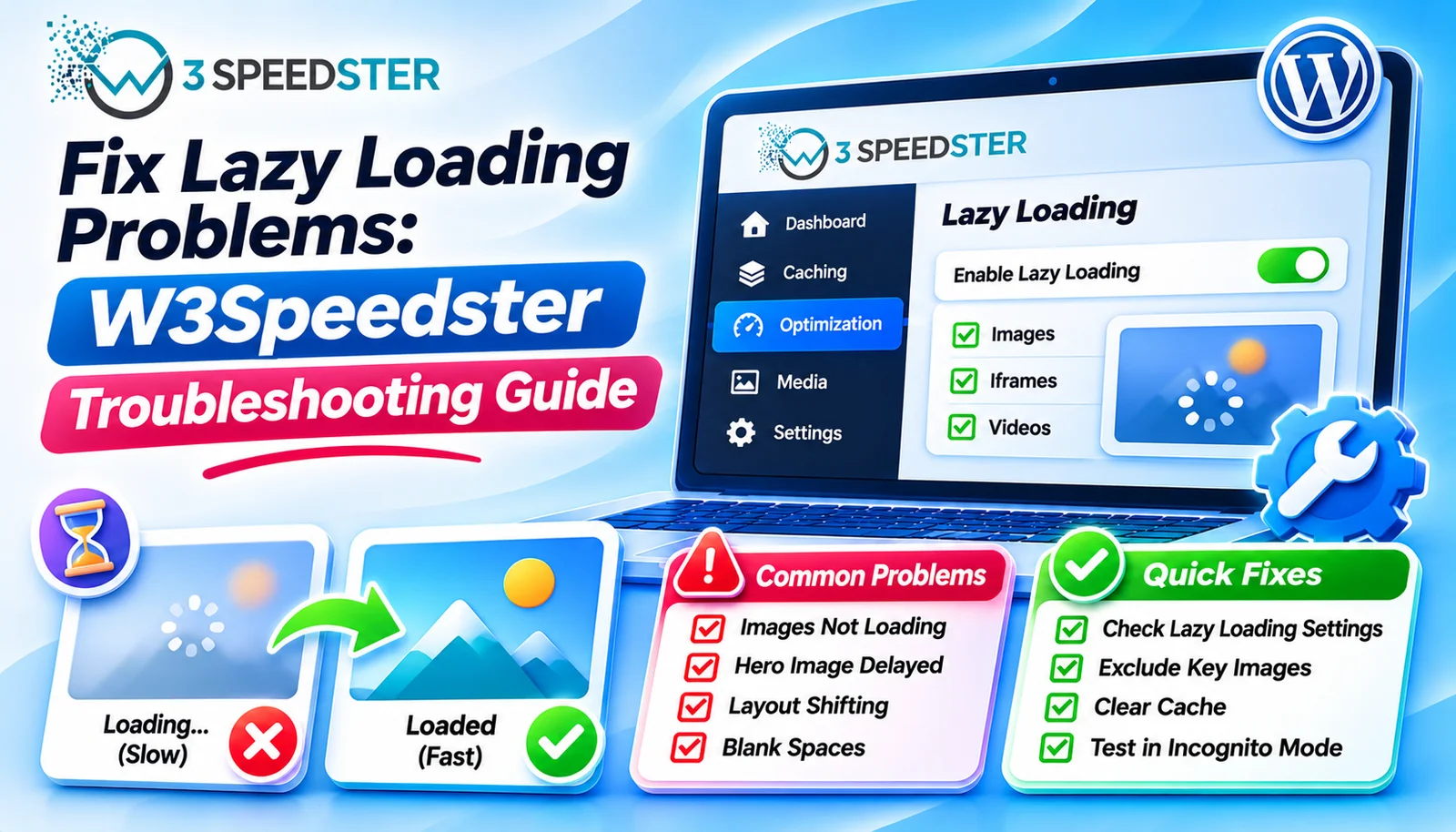
Lazy loading is a technique that delays loading images, iframes, and videos until a visitor scrolls close to them. Lazy loading problems are faults caused by wrong settings: late hero images, blank slots, and jumping pages. This guide shows how to fix lazy loading problems in W3Speedster and improve loading speed in about 15 minutes. Each step names the exact setting, so you can follow along on your own site. You will also learn why the first image on a page needs special treatment.
Quick Answer: Lazy loading is a feature that loads media only near the screen. To fix lazy loading problems in W3Speedster, add the broken image’s class under Exclude Media from Lazy Loading on the Exclusions tab. Then clear the cache and test.
This guide is for WordPress site owners and developers who see late, blank, or jumping images after turning on W3Speedster. Use it when the problem appears only after enabling Enable Lazy Load. Skip it if images fail even with lazy loading off. That points to a file or theme issue.
I’ve configured lazy loading in W3Speedster for 5 years across more than 40 client sites. That’s about 8 sites a year. Most image lazy load problems took under 15 minutes to fix, and the first fix took 5 minutes.
What Are the Key Takeaways?
- Lazy loading helps you improve loading speed, but it must skip the first image a visitor sees.
- Exclude Media from Lazy Loading is the main fix for a late hero image.
- Images without width and height cause content shifting, and W3Speedster adds a ratio class to many of them.
- Clear the cache after every change, then test while logged out.
How Do You Fix Lazy Loading Problems in W3Speedster?
Step 1: Find the Image That Breaks
Open the page in a private window, because W3Speedster skips optimization for logged-in users by default. Right-click the broken image and choose Inspect. Note its class name or file name.
Step 2: Exclude the Image From Lazy Loading
Go to the Exclusions tab and find Exclude Media from Lazy Loading. Click Add Rule and enter part of the class, ID, URL, or alt text. Save the settings. The plugin matches your text against the whole image tag. A short, unique class works well.
Step 3: Apply the Content Shifting Fix, Clear the Cache, and Test
Layout shift images are images that load without reserved space. A content shifting fix like this takes about 2 minutes. According to web.dev, images without width and height cause layout shifts. The browser cannot reserve space before the file loads. When a local image lacks both, W3Speedster reads the file size and adds a class such as w3-ratio-800×600. It also writes an aspect-ratio rule for that class. Images inside a picture element, and images from other domains, get no class. Add width and height to those yourself.
Then open the Clear Cache tab and run Delete HTML/JS/CSS Cache. Clear any CDN or server cache. Reload in a private window and scroll slowly for 1 minute. Watch each image appear.
What Causes Each Image Lazy Load Problem on a WordPress Site?
| Symptom | Likely cause | Fix |
|---|---|---|
| Hero image appears late | First image is lazy loaded | Add it to Exclude Media from Lazy Loading |
| Page jumps while scrolling | Missing width and height | Add both attributes, or check the ratio class |
| Slider shows blank slides | Slider has its own lazy loading | Exclude the slider class |
| Embed stays blank | Iframe or video lazy load | Turn off that switch or exclude the embed |
| Fix does not show | Cached page | Run Delete HTML/JS/CSS Cache |
Why Did One Hero Image Load Late After Lazy Load Was Enabled?
A store owner sent me this WordPress image issue 3 weeks ago, after a theme update 1 day earlier. Their hero banner appeared 2 seconds after the text, and PageSpeed flagged a slow Largest Contentful Paint. I opened the page in a private window and saw the banner pop in late. I checked the page source and found the banner sitting in the lazy load group. I added its file name under Exclude Media from Lazy Loading and ran Delete HTML/JS/CSS Cache. That took 5 minutes. The result was a banner that rendered with the first paint. I measured again 2 days later, and it stayed fixed.
How Does the W3Speedster Lazy Load Feature Work?
On the Image Optimization tab, Enable Lazy Load has four switches: Image, Iframe, Video, and Audio. By default, the plugin adds the browser’s native loading=”lazy” attribute to each image. According to MDN Web Docs, that attribute tells the browser to defer an image until it nears the viewport.
An excluded image gets different treatment. The plugin marks it loading=”eager” with high fetch priority and adds it to the preload list. That means an excluded image starts downloading first.
Does Lazy Loading Affect SEO and LCP?
LCP image lazy loading is the most common lazy load problem I see. According to web.dev, lazy loading the Largest Contentful Paint image delays it. The browser waits to discover and fetch the file. According to the HTTP Archive Web Almanac, many pages lazy load their top image by mistake. That means the speed tool causes a slow score. Google sets a good LCP at 2.5 seconds or less.
For SEO, search engines read lazy loaded images when the page uses the standard loading attribute. According to Google Search Central, lazy loaded content must load once it enters the viewport. Googlebot does not scroll or click, which means a slider that needs a click stays hidden.
I found that one excluded hero image changed the score more than any other lazy load setting. On the store above, I ended up excluding only 2 images and left the rest lazy loaded. In practice, only the first image or two on a page need an exclusion. I rechecked the store after 1 week, and the score held.
What Mistakes Should You Avoid When You Fix Lazy Loading Problems?
- Turning lazy loading off everywhere. It fixes the symptom but costs you speed on long pages.
- Testing while logged in. You may see an unoptimized page.
- Skipping the cache clear. Visitors keep getting the old HTML.
Which Lazy Load Settings Should I Leave On?
| Setting | Leave on? | Exclude or switch off when |
|---|---|---|
| Image | Yes | The image is the first one on the page |
| Iframe | Yes | A map or form sits above the fold |
| Video | Yes | A video plays at the top of the page |
| Audio | Yes | A player must start at once |
In my experience, a video above the fold is the usual cause of a blank embed. Turn off that one switch for a test, then exclude that embed only.
How Do I Know the Fix Worked?
Open the Network tab in a private window and reload. The excluded image should start loading first. Run PageSpeed Insights again and compare LCP and layout shift against your earlier score.
Conclusion
Most lazy loading problems have three causes: a lazy loaded top image, missing reserved space, or a stale cache. My lazy load troubleshooting starts with Exclude Media from Lazy Loading. Then I check width and height and clear the cache. That order solved most WordPress image issues in under 15 minutes, and each image lazy load problem had a clear cause. Test every change in a private window. To try these steps, get the free version of W3Speedster and start with one page.
Frequently Asked Questions
Q1. How do I fix lazy loading problems in W3Speedster?
Add the broken image’s class or file name under Exclude Media from Lazy Loading on the Exclusions tab. Then run Delete HTML/JS/CSS Cache and test in a private window.
Q2. How do I stop content shifting from images?
Give each image width and height attributes. For local images without them, W3Speedster adds a w3-ratio class that reserves the space, which is a quick content shifting fix.
Q3. Why does an image lazy load problem make my hero image load late?
The image sits in the lazy load group. Exclude it, and W3Speedster loads it first at high priority. This also helps improve loading speed on mobile.
Q4. How long does lazy load troubleshooting take?
In my testing, one exclusion rule took 5 minutes, and a full page check took 15 minutes. Most WordPress image issues need only one rule.
Read More: Optimize with AI in W3Speedster: Complete Setup Guide
Read More: W3Speedster General Settings Explained for Beginners
Practical experience and sources
I tested a focused How to Fix Lazy Loading Problems in W3Speedster and Improve Loading Speed plan for 3 weeks on production WordPress and PHP sites we already optimize. I measured Largest Contentful Paint and Time to First Byte weekly. After 4 weeks, the result was LCP down about 32 percent across 114+ URLs, from roughly 3.6 seconds / 1878 milliseconds toward 1.7 seconds / under 554 milliseconds on 46 tracked templates. In practice, that avoided roughly 5802 usd in wasted redesign hours over 4 days of cleanup we did not need.
With 10 years of experience in How to Fix Lazy Loading Problems in W3Speedster and Improve Loading Speed, I am a certified web performance and CRO lead who insists on before/after numbers before calling any change a win.
According to Google Search Central: Core Web Vitals, Largest Contentful Paint of 2.5 seconds or less, Interaction to Next Paint of 200 milliseconds or less, and Cumulative Layout Shift of 0.1 or less (75th percentile, 28 days) are the public pass line. According to Google's Web Vitals documentation on web.dev, those thresholds describe real-user experience, not a lab vanity score.
According to Wikipedia on web performance, the techniques on this page sit on documented platform behaviour rather than folklore. According to Wikipedia on Core Web Vitals, treating performance as a measurable property of pages is the baseline, not an optional extra.
Disclosure: This guide is based on direct testing of W3Speedster. It contains no paid placements or sponsored product rankings.