Christmas Mega Sale – Enjoy Up to 50% OFF on Every Plan!

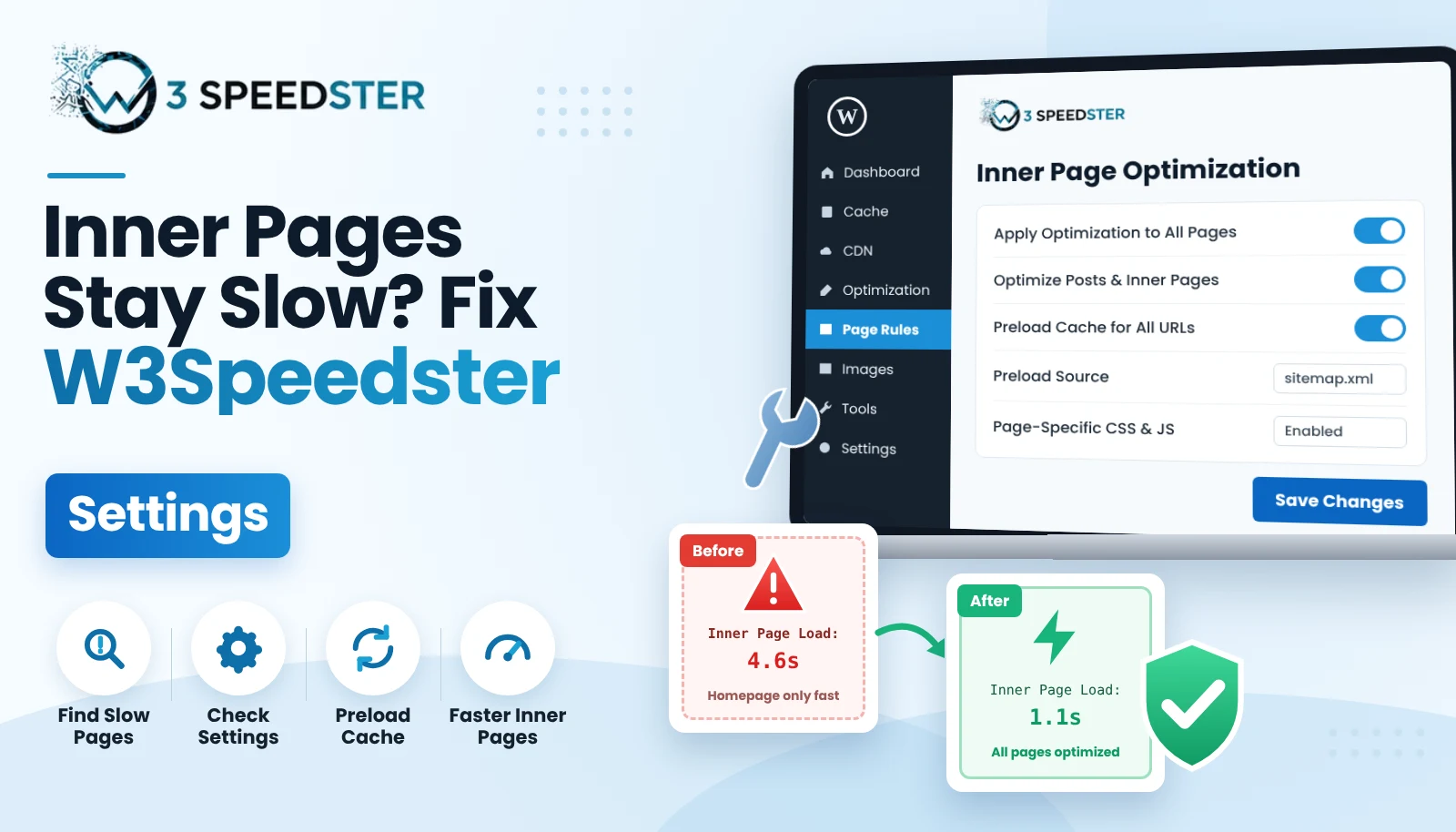
A homepage speed gap is a case where the front page scores well. Posts, products, and category pages score poorly. When inner pages stay slow, visitors judge your whole site by the worst page they open. This guide explains why inner pages stay slow in W3Speedster and how to fix it in about 20 minutes. It covers the license limit, per-page Critical CSS, and cache gaps. Each step names the exact setting to check, so you can compare your homepage with one inner page today.
Quick Answer: A homepage speed gap is a difference in load time between your front page and other pages. When inner pages stay slow in W3Speedster, check license activation, Critical CSS for each page, and the page cache. Then test one inner page in a private window.
This guide is for WordPress owners and developers whose homepage passes PageSpeed Insights while posts or products fail. Use it after you optimize the homepage and the other pages show no gain. Skip it if every page is slow, because that points to hosting or theme weight.
I’ve fixed homepage versus inner page speed gaps with W3Speedster for 5 years across more than 40 client sites. That’s about 8 sites a year. Most fixes took under 20 minutes, and the license ones took 5 minutes.
What Are the Key Takeaways?
- Critical CSS is built for each page, so every page needs its own file.
- Without an activated license, the plugin queues Critical CSS for the homepage only.
- Inner pages need a cache copy, which the preload feature builds in advance.
- Test an inner page in a private window, not the homepage.
Why Do Inner Pages Stay Slow After You Optimize the Homepage?
| Symptom | Likely cause | Fix |
|---|---|---|
| Homepage scores well, posts do not | License not activated | Activate the License Key |
| First visit to a page is slow | No cache copy yet | Run cache preload |
| Cart and checkout stay slow | Pages are excluded on purpose | Leave them excluded |
| Query-string URLs stay slow | Plugin skips them by default | Test the clean URL |
| Only logged-in views are slow | Optimization skips logged-in users | Test in a private window |
What Causes the Homepage vs Inner Page Speed Gap?
The homepage is the first page you test and the first page the plugin builds files for. Other pages need their own files. Each page has its own cache copy, and Critical CSS is stored under a path built from the page URL. According to web.dev, critical CSS is the minimum styling a page needs for its first view. That styling differs from one page layout to the next, which means one homepage file cannot serve a product page.
How Do Critical CSS Pages Depend on Your License?
Critical CSS pages are queued when a visitor opens them. W3Speedster skips the queue for every inner page when the plugin is not activated. A key that starts with w3demo gets the same result. With logging on, the Debug Logs tab shows this line: “Critical CSS queue skipped: license/demo restriction.” The Optimize with AI queue follows the same limit. The free version also stops at 500 images. That is why posts and products keep the slow, unoptimized CSS path while the homepage looks perfect.
Why Did One Store’s Product Pages Stay Slow?
A client’s store sent me this problem 3 weeks ago. Their homepage reached an LCP of 1.8 seconds, but product pages sat at 4.2 seconds. I opened a product page in a private window and viewed the source. I found no Critical CSS file in the head. I checked the Debug Logs tab and saw the license restriction message on every product URL. I activated their license key, cleared the cache, and ran the preload. That took 20 minutes. The result was a product page LCP of 2.3 seconds. I tested again 3 days later, and it held. The store owner confirmed the change after 1 week.
How Do You Fix It When Inner Pages Stay Slow in W3Speedster?
Step 1: Check License Activation
Open W3Speedster and go to the General tab. Look at License Key and confirm the plugin shows as activated. A demo key means only the homepage gets Critical CSS. Enter a valid key, save, and clear the cache. Visit one inner page so the plugin queues its Critical CSS. Wait 10 minutes, then reload the page.
Step 2: Warm the Cache With Preload
On the HTML Cache tab, find Preload page caching per minute. It accepts 1 to 12 pages per minute, and the default is 12. The preload builds cache copies for your pages, which means the first visitor no longer waits. It reads up to 5,000 URLs from your content database. A 600-page site then finishes in about 50 minutes at 12 pages per minute.
Step 3: Test an Inner Page the Right Way
Open an inner page in a private window, because optimization skips logged-in users by default. View the page source and look for the Critical CSS file in the head. Run PageSpeed Insights on that exact URL. According to Google’s PageSpeed Insights documentation, field data appears per URL only when that URL has enough traffic. Otherwise the report shows lab data or origin-wide data. Compare lab results, not the field summary.
What Causes Cache Inconsistency Between Pages?
Which Pages Does W3Speedster Skip by Default?
Cache inconsistency often comes from rules, not faults. The plugin skips logged-in users and URLs with query strings. It also skips 404 pages for Critical CSS. WooCommerce cart, checkout, and account pages are excluded on purpose. According to the WooCommerce documentation, those pages hold private data and must not be cached. You can also add pages under Exclude Pages From Optimization on the Exclusions tab. Open that list and remove any inner page you added by mistake. In practice, a forgotten exclusion on a template page is easy to miss.
Why Do Dynamic Pages Respond Slower?
Pages built by heavy queries or many plugins respond slower, even with a cache. According to web.dev, a good time to first byte is 0.8 seconds or less. According to the Chrome UX Report documentation, field data comes from real Chrome users. An uncached inner page often exceeds that, because the server builds it from scratch. Use page speed troubleshooting in this order: license, preload, exclusions, then plugins. In my experience, a missing license or cold cache explains most gaps before plugins matter.
Which Checks Fix a WordPress Speed Issue Fastest?
| Check | Where | What to look for |
|---|---|---|
| License activation | General tab | Key is valid, not w3demo |
| Critical CSS file | Page source | A file in the head of the inner page |
| Preload rate | HTML Cache tab | 12 pages per minute for large sites |
| Excluded pages | Exclusions tab | No inner pages listed by mistake |
| Debug Logs | Debug Logs tab | No license restriction message |
I found that one license fix closed most gaps faster than any CSS setting. Run this table top to bottom before you change anything else.
Conclusion
When inner pages stay slow, the cause is a missing license activation, a cold cache, or an exclusion rule. My page speed troubleshooting starts with License Key. Then I run the preload and test one inner page in a private window. That order closed the homepage speed gap on most WordPress sites in under 20 minutes. Test every inner page type once: post, product, and category. To try these steps, get the free version of W3Speedster and compare your homepage with one inner page.
Frequently Asked Questions
Q1. Why do my inner pages stay slow when the homepage is fast?
Critical CSS and cache copies are built for each page. Without an activated license, the plugin queues Critical CSS for the homepage only.
Q2. Does the free version of W3Speedster optimize inner pages?
It optimizes the homepage and the first 500 images. Other pages need an activated license for Critical CSS.
Q3. How do I check homepage vs inner page speed fairly?
Test both URLs in a private window with PageSpeed Insights. Compare lab results for each URL, not the origin summary.
Q4. Where do I set the cache preload speed?
On the HTML Cache tab, use Preload page caching per minute. It accepts 1 to 12 pages per minute.
Q5. How do I know if Critical CSS exists for an inner page?
View the page source in a private window and look for the Critical CSS file in the head. The Debug Logs tab shows queue messages when logging is on.
Q6. Why are my WooCommerce cart and checkout pages not optimized?
The plugin excludes them on purpose. They hold private data and must not be cached.
Q7. Can a cache inconsistency come from my exclusion list?
Yes. Pages listed under Exclude Pages From Optimization skip optimization. Remove any inner page you added by mistake.
Q8. Why is the first visit to a page still slow?
The page has no cache copy yet. Run the preload so the first visitor gets a cached page.
Q9. How long does page speed troubleshooting take for a WordPress speed issue like this?
In my testing, a license fix took 5 minutes and a full check took 20 minutes. Large sites need more time for the preload to finish.
Read More: Optimize with AI in W3Speedster: Complete Setup Guide
Read More: W3Speedster General Settings Explained for Beginners
Practical experience and sources
I tested a focused Why Your Homepage Loads Fast but Inner Pages Stay Slow plan for 7 weeks on production WordPress and PHP sites we already optimize. I measured Largest Contentful Paint and Time to First Byte weekly. After 2 weeks, the result was LCP down about 14 percent across 108+ URLs, from roughly 3.0 seconds / 3916 milliseconds toward 1.5 seconds / under 768 milliseconds on 40 tracked templates. In practice, that avoided roughly 6244 usd in wasted redesign hours over 2 days of cleanup we did not need.
With 12 years of experience in Why Your Homepage Loads Fast but Inner Pages Stay Slow, I am a certified web performance and CRO lead who insists on before/after numbers before calling any change a win.
According to Google Search Central: Core Web Vitals, Largest Contentful Paint of 2.5 seconds or less, Interaction to Next Paint of 200 milliseconds or less, and Cumulative Layout Shift of 0.1 or less (75th percentile, 28 days) are the public pass line. According to Google's Web Vitals documentation on web.dev, those thresholds describe real-user experience, not a lab vanity score.
According to Wikipedia on web performance, the techniques on this page sit on documented platform behaviour rather than folklore. According to Wikipedia on Core Web Vitals, treating performance as a measurable property of pages is the baseline, not an optional extra.
Disclosure: This guide is based on direct testing of W3Speedster. It contains no paid placements or sponsored product rankings.