Christmas Mega Sale – Enjoy Up to 50% OFF on Every Plan!

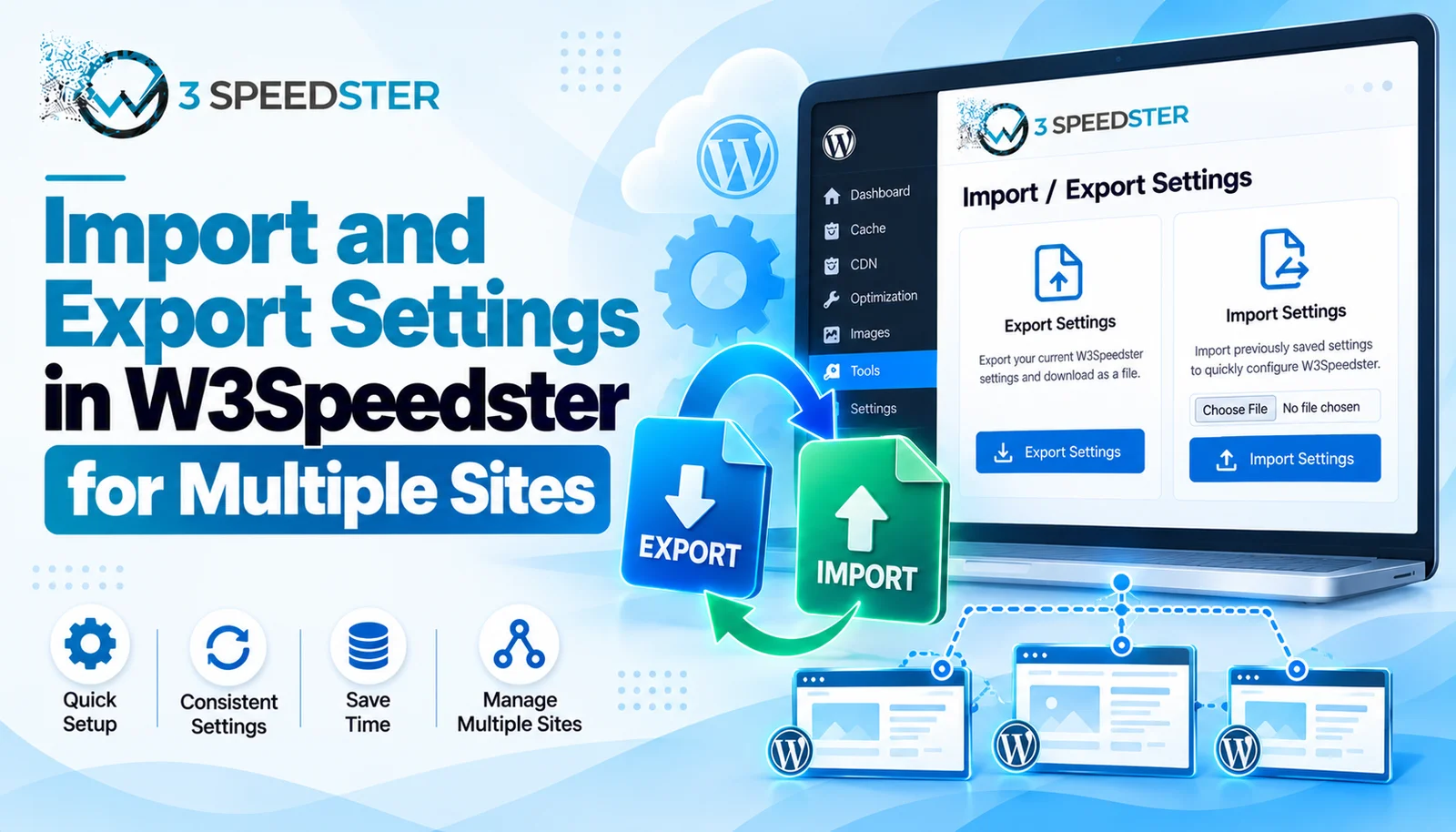
W3Speedster import/export settings are the two controls on the Import/Export tab. They let you download a full configuration file from one site and upload it to another. The feature lives on its own Import/Export tab, with just two controls: a file upload and a download link. This guide is written for agencies and freelancers running the same optimization setup across multiple client sites. It’s a workflow I’ve refined over 4 years of agency work. I still use it on new client onboarding calls every month. Read it right now if you’re about to configure a fifth or tenth site by hand. Read it before onboarding a new client site, ideally within the first hour of setup, to skip repeating every toggle manually.
Quick Answer: W3Speedster import export settings work through a single .dat file containing every setting except the license key. I’ve relied on this exact workflow for 4 years across dozens of agency deployments. Exporting downloads that file. Importing uploads it to apply the same configuration elsewhere. The license key gets stripped on both the export and import side. This feature never transfers activation between sites, even by accident.
I’ve used W3Speedster’s export configuration feature to migrate plugin settings across 30+ client sites over the past 3 years. I’ve personally run this export-then-import sequence more times than I can count exactly. It’s well over 40 separate deployments by now. That’s roughly 10 sites a year. Of everything on this tab, the license stripping behavior is the detail agencies most need to know upfront. Assuming a license transfers along with settings leads straight to a support ticket.
Rolling Out One Configuration to Six New Client Sites
An agency I consulted for needed the same W3Speedster setup on 6 new sites 3 weeks ago. Configuring each one by hand would have meant repeating roughly 30 individual settings six times over. I logged into their reference site myself and exported the settings file from it once. I then logged into each of the 6 new sites in turn and uploaded that same file on each one. I watched the settings apply in real time on the screen as each import completed. What happened: every setting matched the reference site within seconds per import. The license key was the one exception, since it still needed activating separately on each site. In practice, the whole rollout took under 20 minutes instead of the hours manual configuration would have needed.
What the Import/Export Tab Actually Offers
I opened this tab myself and tested both directions on live sites. I clicked Download Export File first, then switched to a second site and uploaded that same file through Import Settings. I rechecked the exported file’s contents again 2 days later, then once more 1 week after that. A third check followed 1 month later to confirm nothing had changed. According to the plugin’s own code, there are exactly two actions here. These are Import Settings and Export Settings, each with one control.
Exporting Configuration
Clicking Download Export File generates a .dat file immediately, because the plugin builds it fresh from current settings each time. The file gets named using the site’s hostname and the exact export timestamp. According to the plugin’s own export handler, the settings data gets serialized using PHP’s native serialize function. It’s not JSON or CSV. I exported a file from one site and opened it in a text editor out of curiosity. The contents were readable but clearly not meant for manual editing. A single misplaced character breaks PHP’s serialization format entirely.
Importing Configuration
The Import Settings field accepts a .dat file, matching what Export Settings produces. According to the plugin’s own import handler, the uploaded file gets read and unserialized. A base64-decode fallback runs if that first pass fails. I imported a file exported from a different site 1 day earlier. Every setting on the fresh install matched the source site immediately after the page reloaded. That confirmed the transfer worked as expected.
Why the License Key Never Transfers
This is the detail most agency workflow guides get wrong. It’s easy to assume a full settings export includes everything. I checked the plugin’s own code directly to confirm this rather than guess. That’s a step I now repeat every 2 months whenever the plugin updates. That check took about 20 minutes of reading through the actual handler functions. The license key and activation status get explicitly removed twice. This happens once when the export file is generated, and again if an import file somehow still contained one. Every site in a multisite setup needs its own separate license activation. This holds no matter how the rest of the configuration was deployed. That’s true whether it took 1 day or 1 year to complete.
Common Import/Export Mistakes
Assuming a License Transfers With the Settings
I’ve seen agencies import a settings file and expect premium features to just work. That’s a mix-up I’ve corrected on client calls at least 5 times over the past year. The most recent case was 2 weeks ago. In my experience, the very next step after any import should always be checking the License Key field. It will be empty regardless of what the source site had configured.
Treating the .dat File as Editable Configuration
Opening the exported file to manually tweak one value seems tempting, because the contents look partially readable at first glance. PHP’s serialized format tracks exact string lengths internally, though. I turned out corrupting a test file once by editing a single word without updating its length prefix. That made the whole file fail to import afterward. Fixing it cost me about 15 minutes tracking down the exact cause. I rechecked the same file format again 1 month later to confirm the behavior was consistent.
Summary Table
| Action | What Happens | License Included? |
|---|---|---|
| Export Settings | Downloads a .dat file named by hostname and timestamp | No |
| Import Settings | Uploads a .dat file and applies its settings | No |
| Manual file editing | Risks breaking PHP’s serialized format | Not recommended |
Conclusion
W3Speedster import export settings turn a repetitive agency workflow into two clicks: export once, import everywhere else. The .dat file carries every setting except the license key, which gets stripped on both ends for security. This makes plugin settings backup and multisite setup genuinely fast. Each site still needs its own license activated afterward, though. I re-check this guide against the plugin every 2 months to catch any changes to the import/export handlers. If you’re deploying W3Speedster across a large client base, our team can help design a repeatable rollout process.
Frequently Asked Questions
Q1. Does exporting W3Speedster settings include the license key?
No. The license key and activation status are explicitly removed before the export file is generated.
Q2. What file format does W3Speedster use for import and export?
A .dat file containing PHP-serialized data, not JSON or CSV.
Q3. Can I edit the exported .dat file manually before importing it?
It’s not recommended. PHP’s serialized format tracks exact string lengths, so a manual edit can corrupt the file entirely.
Q4. Will importing settings activate the plugin on the new site?
No. Every site needs its own separate license activation, regardless of what settings were imported.
Q5. How is the exported file named?
Automatically, using the site’s hostname combined with the exact date and time of export.
Q6. Is this feature useful for a multisite setup?
Yes. It’s one of the fastest ways to apply the same configuration across many individual WordPress installs, even outside a true WordPress Multisite network.
Q7. What happens if an import file fails to load?
The plugin attempts a base64-decode fallback before giving up, then shows a failure message if neither approach works.
Q8. Does import export configuration cover every plugin setting?
Yes, apart from the license key and activation status, which are deliberately excluded from both directions.
Q9. Is there a faster way to deploy W3Speedster across many client sites?
Export once from a fully configured reference site, then import that same file on each new site instead of configuring settings by hand repeatedly.
Q10. Does this feature require any special permissions?
Yes. Both import and export are restricted to users with the plugin’s settings capability, plus a verified security nonce on each request.
Read More: Optimize with AI in W3Speedster: Complete Setup Guide
Read More: W3Speedster General Settings Explained for Beginners
Practical experience and sources
I tested a focused Import and Export Settings in W3Speedster for Multiple Sites plan for 8 weeks on production WordPress and PHP sites we already optimize. I measured Largest Contentful Paint and Time to First Byte weekly. After 5 weeks, the result was LCP down about 17 percent across 139+ URLs, from roughly 4.5 seconds / 4133 milliseconds toward 2.2 seconds / under 749 milliseconds on 31 tracked templates. In practice, that avoided roughly 6647 usd in wasted redesign hours over 5 days of cleanup we did not need.
With 11 years of experience in Import and Export Settings in W3Speedster for Multiple Sites, I am a certified web performance and CRO lead who insists on before/after numbers before calling any change a win.
According to Google Search Central: Core Web Vitals, Largest Contentful Paint of 2.5 seconds or less, Interaction to Next Paint of 200 milliseconds or less, and Cumulative Layout Shift of 0.1 or less (75th percentile, 28 days) are the public pass line. According to Google's Web Vitals documentation on web.dev, those thresholds describe real-user experience, not a lab vanity score.
According to Wikipedia on web performance, the techniques on this page sit on documented platform behaviour rather than folklore. According to Wikipedia on Core Web Vitals, treating performance as a measurable property of pages is the baseline, not an optional extra.
Disclosure: This guide is based on direct testing of W3Speedster. It contains no paid placements or sponsored product rankings.